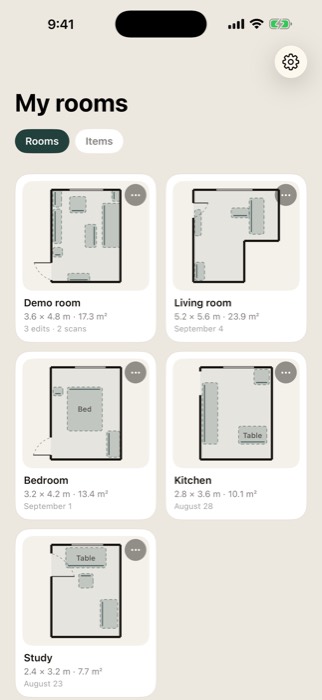
Your rooms
Every room you scan is kept as a plan with its real dimensions. Open one to see its photos, its items and everything you tried on in it.
Support
What the app does, screen by screen, and the answers to the things people write to us about most. If yours isn’t here, email us — a person reads it.
support@ai-roomplanner.appEvery room you scan is kept as a plan with its real dimensions. Open one to see its photos, its items and everything you tried on in it.
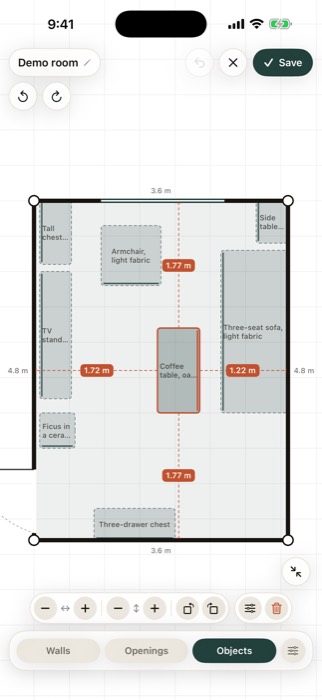
Walls, windows, doors and the furniture already standing there. Drag anything with a finger or type the exact number; re-scan whenever you like.
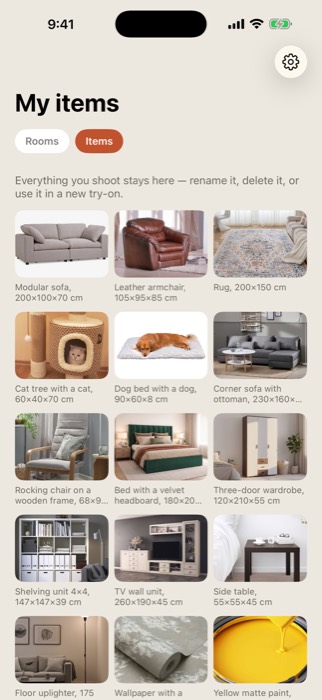
Photograph a sofa in the shop or save a picture from a listing, give it a name, and reuse it in any room.
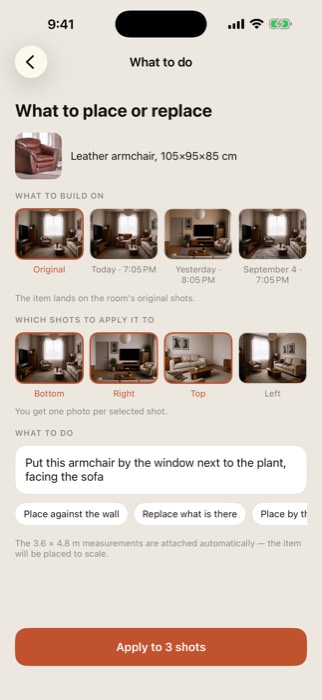
Pick the item, pick which photos to change, and write it the way you would say it. The measured plan goes into the request, so the item lands in scale.
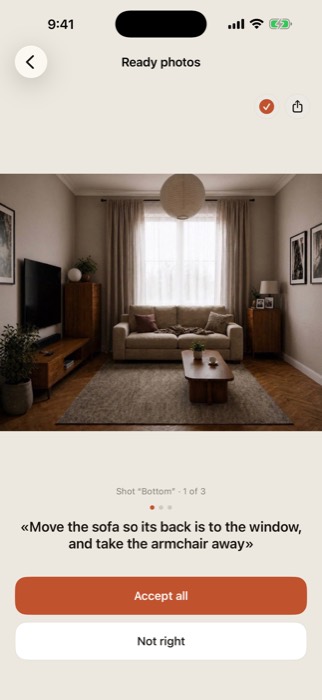
Usually 15 to 20 seconds. Close the app if you like — a notification arrives when the photos are ready.
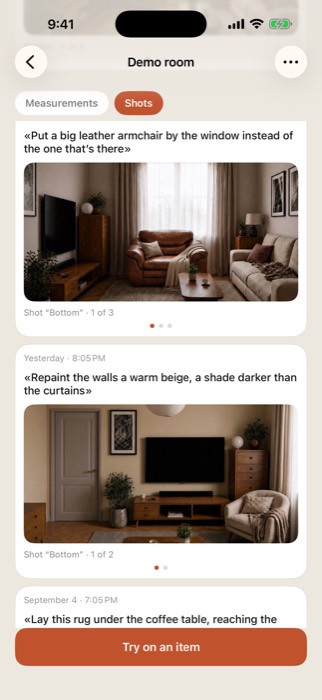
Accept a result and it becomes the base for the next change. Reject it and your original photo is untouched. Every accepted change stays in the room’s history.
The free version gives you up to three rooms and one AI try-on a day. A subscription lifts both limits, monthly or yearly, and both start with the same free three-day trial — nothing is charged until it ends, and cancelling before then costs nothing. Current prices are the ones shown in the App Store.
Subscriptions are handled by Apple, not by us. In the app it is Settings → your plan → Manage; on the iPhone itself, Settings → your name → Subscriptions → RoomPlanner. Both lead to the same place. Cancelling stops the next renewal, and the subscription keeps working until the end of the period you already paid for. Refunds are Apple’s too — ask for one at reportaproblem.apple.com.
Check that the iPhone is signed in with the same Apple Account that bought the subscription, then open the subscription screen in the app and tap Restore purchases. If it still doesn’t come back, write to us with the email of your Apple Account and we’ll sort it out.
Tap the ⋯ in the corner of the tile, or press and hold it, and choose Delete. Deleting a room also deletes its plans, its photos and every try-on made in it, on your phone and on our server.
In the app: Settings → Delete account. That removes your rooms, plans, photos, try-ons and the account itself, permanently. If you no longer have the app or can’t sign in, write to support@ai-roomplanner.app from the address on your account and we’ll delete it for you within 30 days. Deleting the account does not cancel the subscription — cancel that with Apple, as above.
Automatic scanning needs a depth sensor: iPhone 12 Pro and 12 Pro Max and every Pro model since, plus the iPad Pro from 2020 onwards. On any other device you draw the plan by hand instead — start from the default room and fit it to yours. Everything else works the same.
Reject it — the original photo of your room is untouched — and try again with a shorter, more specific instruction, or with a cleaner picture of the item. If it keeps failing, send us the room name and roughly when it happened.
Settings → Anonymous analytics. With the switch off the app stops sending usage events. What those events contain is spelled out in the Privacy Policy.
Bugs, account deletion, billing, a try-on that went wrong, or anything about your data: support@ai-roomplanner.app. We answer within a couple of days, and data requests within 30.
It helps if you name your device and iOS version, the app version from Settings, and what you did just before it went wrong.